

Key facts
- What it fixes
- Scratches, cracks, creases, small tears, stains and fading
- Works best with
- A flat, glare-free scan or photo of the print
- In the app
- Old Photo Restore, new in Glow 2.7
- Platforms
- iPhone, iPad and Android
- Price
- 30 free credits for new users, then credit packs from $1.99 or a Glow subscription (pricing)
What Old Photo Restore fixes
- Scratches, cracks and creases across the print, including fold lines.
- Small tears, spots and stains: damaged bits are filled in to match what's around them.
- Fading: washed-out or yellowed prints get their contrast back.
- Soft detail: faces and edges come out clearer.
Want color too? Run Colorize on the restored copy to turn a black and white photo into natural-looking color.
Before and after
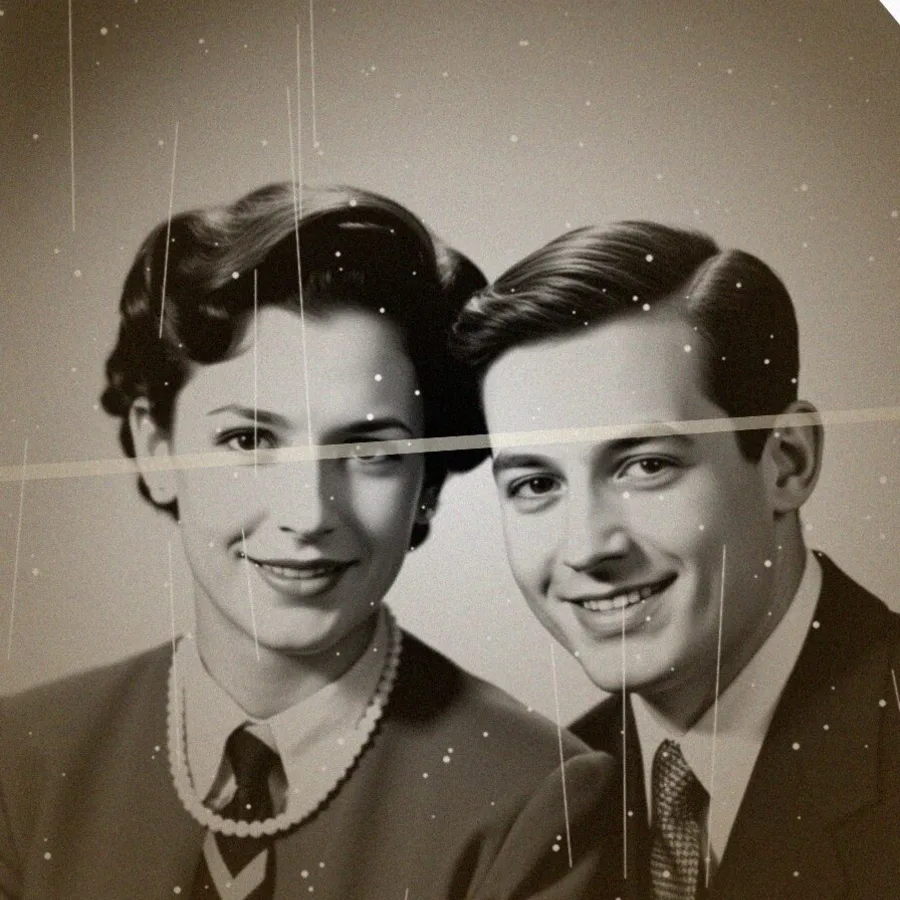
Restoring an old print is usually two or three jobs: repair the damage, recover soft detail and, if you like, add color. The slider above shows a damaged test print before and after the Old Photo Restore model, and the one below shows Enhance on a blurry portrait. Old Photo Restore shows the same before and after slider in the app, so you can check every repair against your original.

 Before
After
How to restore an old photo
- Scan the print, or photograph it flat in even daylight without glare. Take it out of the frame or album sleeve first.
- Open Glow and tap Old Photo Restore.
- Pick the photo and tap Restore photo.
- Compare the result with the original, then save it. Glow saves a new copy; your original stays as it is.
- Optional: run Colorize on the restored photo to add color.
Tips for the best result
- Use the largest, sharpest scan you have. A phone photo works too if the print is flat and evenly lit.
- Crop out the border, the album page and your fingers before you restore.
- For an album page with several prints, crop and restore each photo on its own.
Limits
Restoration is done by AI. Where part of the photo is missing, such as a torn-off corner or a scratch across an eye, Glow fills it in with its best guess, so small details can differ from the real thing. Large missing areas and very small faces are the hardest. Always compare with the original before you save, and keep your original scan. Colors added by Colorize are realistic, not a historical record.
Who it's for
Best for
- Scanned family prints and albums
- Photos of parents, grandparents and ancestors for gifts and genealogy
- Faded, creased or stained snapshots
Not for
- Archival or forensic work where every detail must stay original
- Video or film reels
- Documents and text (use a scanner app)
Questions
How do I restore an old photo on my phone?
Scan or photograph the print flat in even light, open Glow, tap Old Photo Restore and pick the photo. Glow repairs scratches, tears and fading in a few seconds, and you can compare the result with the original before you save it.
Can it fix torn or scratched photos?
Yes, for scratches, cracks, creases and small tears. Glow fills in the damaged areas to match what's around them. When a large piece is missing, the filled-in part is a guess and may not match what was really there.
Can it add color to a black and white photo?
Yes, with Glow's Colorize tool. Restore the photo first, then run Colorize on the result. AI colors look natural, but they can't be guaranteed to match the original colors.
Which version of Glow has Old Photo Restore?
Glow 2.7 and later, on iPhone and Android. If you don't see the tool, update Glow from the App Store or Google Play.
Is it free?
Yes, to start. New users get 30 free credits, one time, with no card needed (fair-use limits apply). Every tool shows its price in credits before you start, and most photo tools cost 2 to 10 credits. After that you can buy a credit pack, from $1.99 for 100 credits on the US stores, or subscribe to Glow for credits every week or month. The app shows the exact price for your country before you pay, and you can cancel a subscription any time in your App Store or Google Play settings. See pricing.
What happens to my photo?
Your photo is uploaded securely and processed once to create your result, which appears in your in-app Gallery. Glow doesn't collect or store face data, and you can delete any result from the Gallery. Details are in the privacy policy.
Last updated November 16, 2026. Made by Halberd LLC, the developer of Glow.